Draw the actual connection
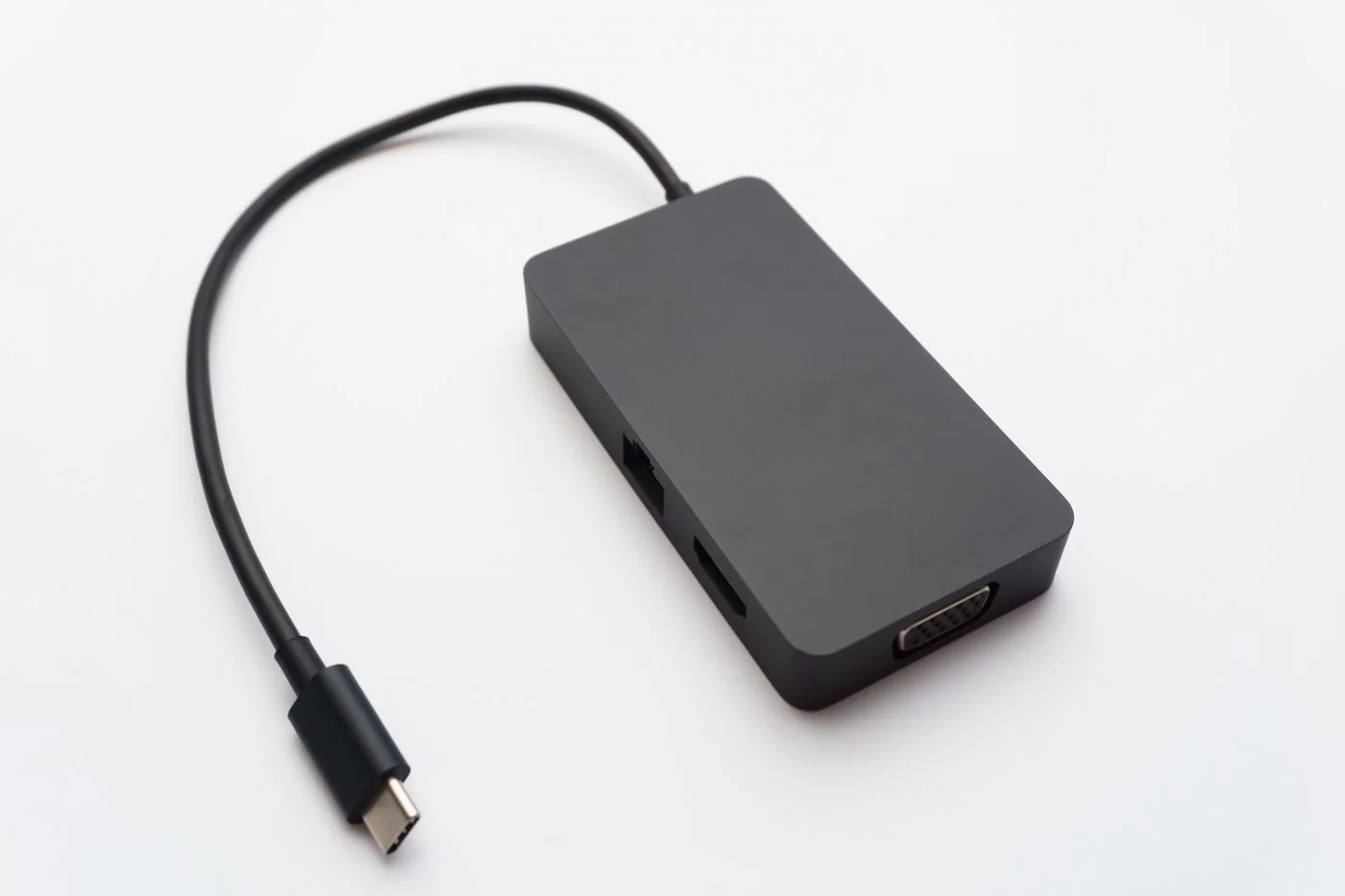
Write down the laptop model, the exact host port, the dock model, the host cable and the monitor connection. Include adapters rather than treating them as invisible pieces. Check which dock socket is intended for the computer; an accessory USB-C socket may not serve as the upstream connection.
Read the laptop's port specification and the dock's host requirements. Many docks require DisplayPort Alternate Mode, Thunderbolt or another specifically supported arrangement. A data-only USB-C port can accept a connector while failing the dock's video requirement. If the computer lacks the required capability, changing the monitor's brightness or reinstalling its application will not provide it.
Use the supplied host cable or an explicitly suitable replacement. Charging support alone does not establish video support. If the dock uses a particular detachable cable, confirm the replacement's required data and display capabilities as well as power rating. Keep the original available for comparison.
Establish one working display path
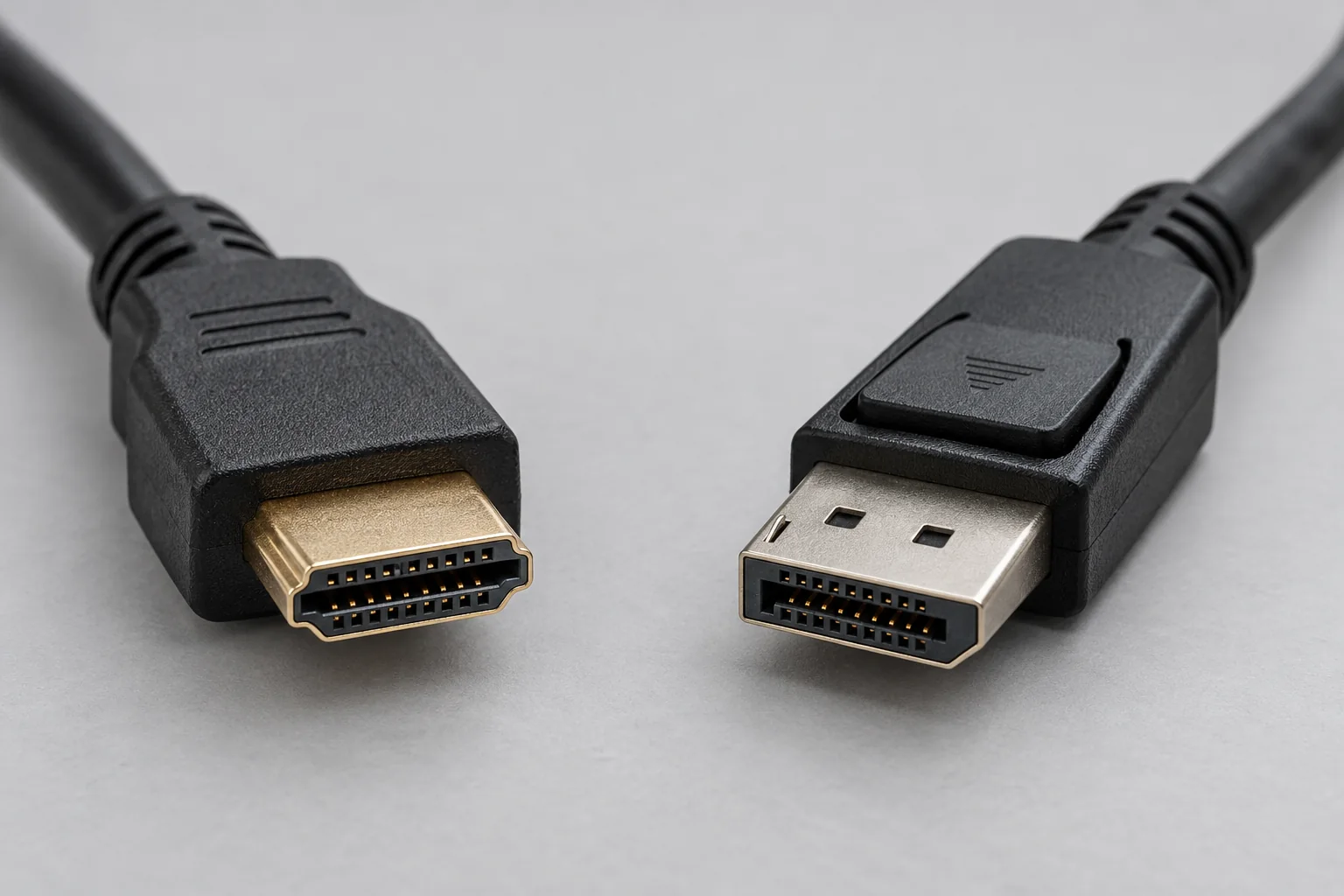
Turn on the monitor and select the input that matches the connected cable. A display with HDMI and DisplayPort inputs may not switch as expected. Open its own on-screen menu; if that is visible, the panel has power, although it still may not be receiving a signal from the computer.
Disconnect additional monitors for the initial test. Use one known suitable display cable from the dock to the monitor. Where the laptop supports it, compare a direct connection to the same monitor, bypassing the dock. A successful direct connection helps establish that the monitor and that path work; it does not by itself certify the dock's host connection.
Inspect the operating system's display settings. If the external screen is detected, check whether it is enabled and whether the chosen mode extends or mirrors the desktop as intended. Begin with a setting explicitly supported by the monitor and connection. A detected display that remains blank is a different clue from one absent from the device's display view.
Compare components without changing everything
If another documented compatible cable is available, substitute only that cable and repeat the test. Then return to the original arrangement before changing another component. Record which combination gives a picture. A table with host port, cable and result can be more useful than several unrecorded restarts.
If the dock supports a power reset, follow its own sequence. Save work and safely eject attached storage first. Do not pull the power from a dock while it is serving an active external drive simply to refresh the monitor. Check the manufacturer's official firmware and driver guidance for the exact dock and computer combination.
Some docks use USB graphics software for some or all outputs. Others use the computer's native display signal. Identify the model's technology before installing software. A generic graphics driver package is not an answer to every blank screen, and a work computer may require administrator-managed installation of the appropriate component.
Reintroduce the full desk setup
Once one screen works, add the second display or other accessories individually. Consult the supported display combinations for resolution and refresh rate. A dock may offer several physical outputs but impose limits on simultaneous use. The computer's own display count and operating-system support also remain relevant.
Test waking from sleep and reconnecting the host cable, because a setup that works only after a particular startup sequence is not fully understood. Note whether the fault follows one monitor, one output or the entire dock. Avoid treating a lower display setting as a final answer until you have checked whether the intended configuration is supported.
If the minimum documented setup still fails, send support the connection map and comparison results. State clearly that charging works while video does not, and whether direct video works. Those distinctions help narrow the problem to capability, cable, dock software or hardware rather than prompting a battery-focused investigation.