Start with a limited area
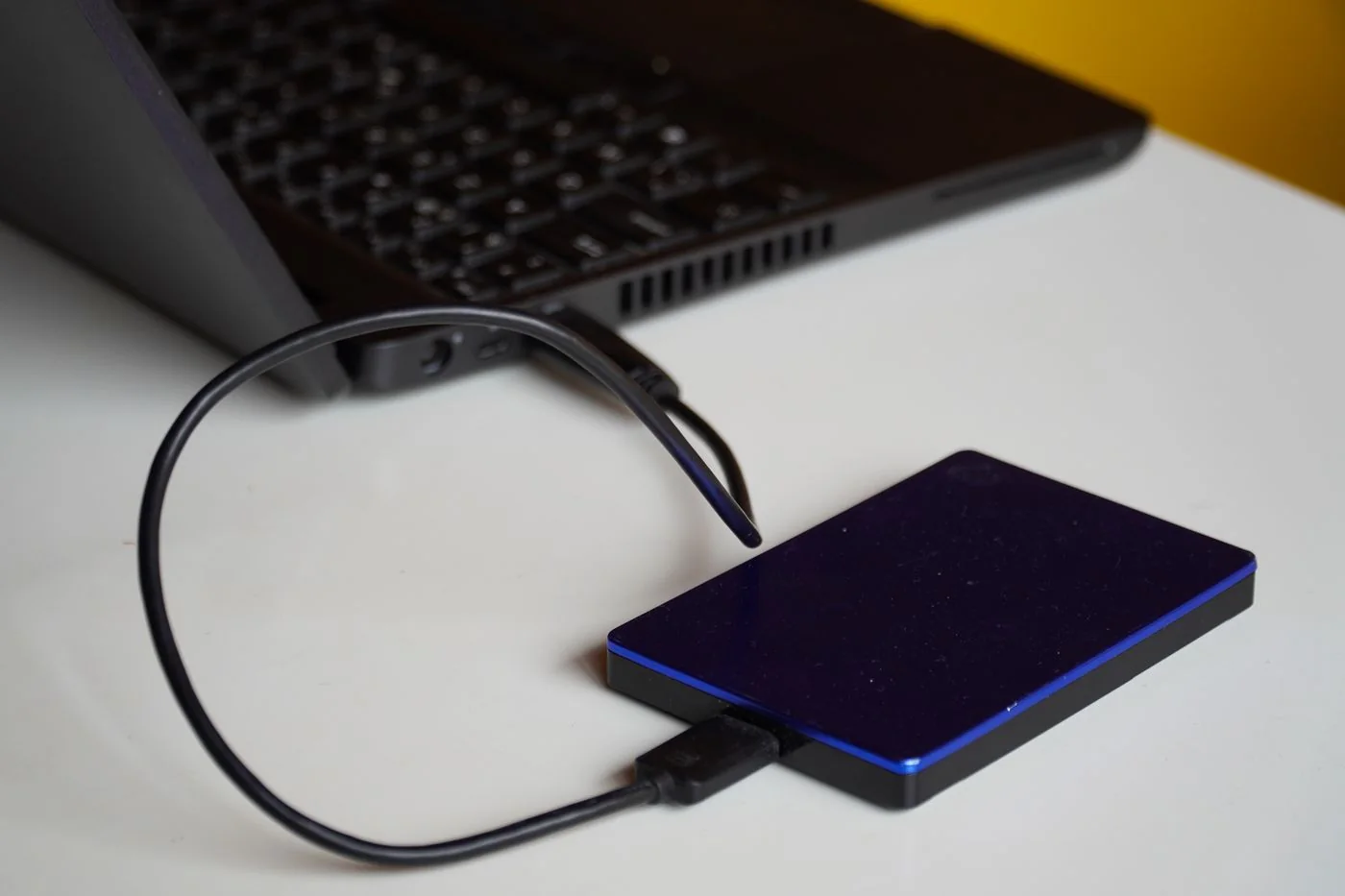
Choose one manageable project folder rather than searching every drive immediately. Create or verify a backup of that area first. Close applications editing its files and coordinate the review when others use it. Automated cleanup during synchronisation can propagate deletions to more devices.
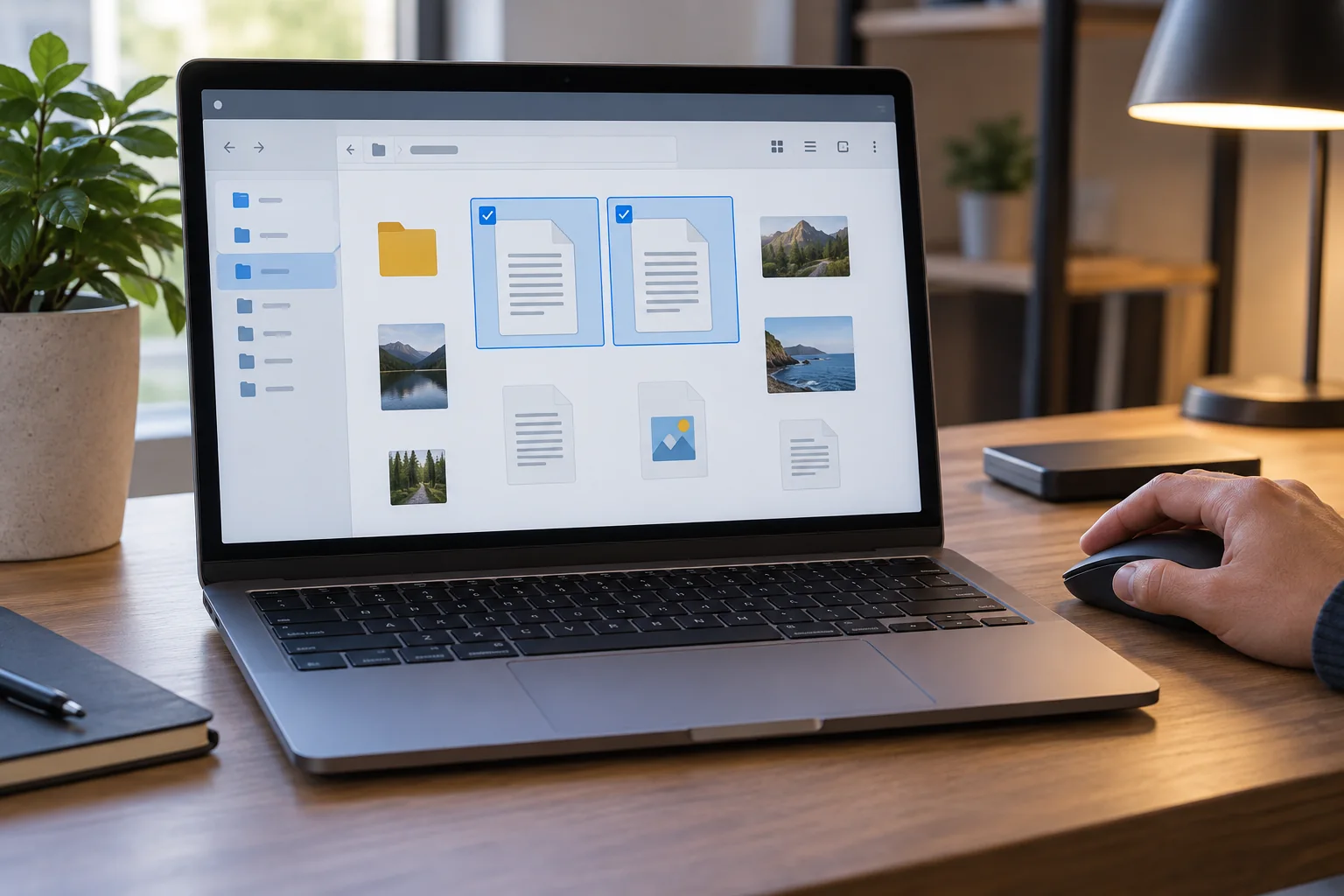
Initially compare full paths, sizes and modification states. Open candidate files in the appropriate application and inspect their contents. A similar name or matching thumbnail is not enough. Two photographs may have different resolution or edits; two spreadsheets can display the same view while containing different formulas.
Identical contents are only part of the decision
A suitable checking tool can identify matching file contents through a hash value. That does not establish whether a copy is still needed in its particular location. A presentation or another project may reference a specific path. Deleting a byte-identical image can still break that reference.
Distinguish working copies, delivered versions, archives and backups. Do not run general duplicate cleanup inside a managed backup archive. Application folders and system files are also outside the scope of ordinary manual tidying. Limit decisions to data whose purpose you can understand.
Set aside before permanently deleting
Where the workflow permits, initially move doubtful candidates into a clearly labelled review area outside active work. Record their original paths. Then check affected projects and shares. With synchronised folders, understand whether that move will also be propagated to other devices and users.
Delete permanently only when the authoritative version is established and required links still work. Retain an identifiable backup. If the space saving is small and a copy's purpose remains uncertain, a documented exception is more sensible than risky cleanup at any cost. A successful duplicate scan is evidence about contents, not permission to remove every matching result.