Close work before ejecting
Save and close documents stored on the drive. Wait for copy and backup tasks to complete. Also close a photo manager or other application still using the relevant folder. A file window may be closed while its application continues holding a file open.
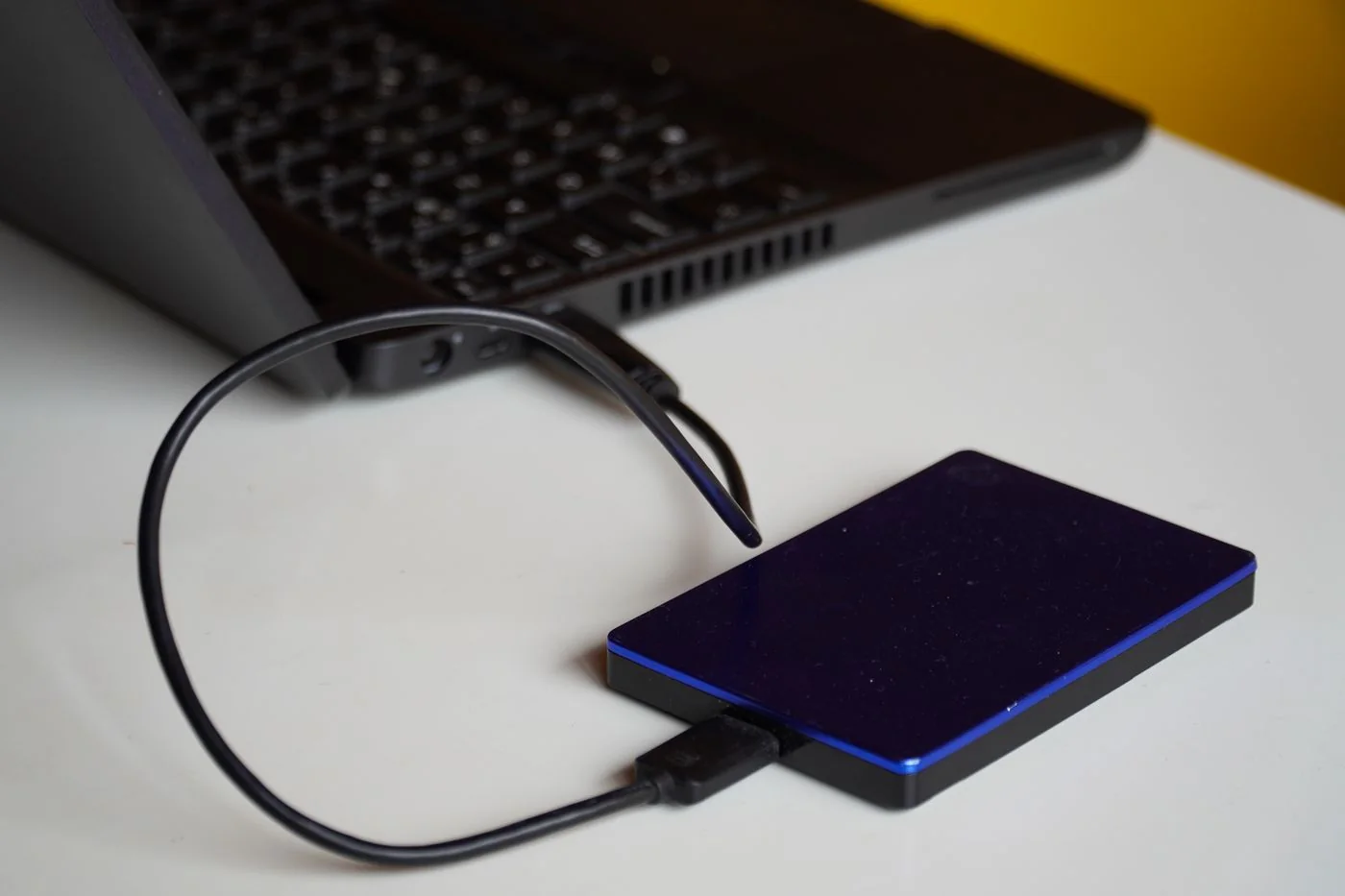
In Windows, use the safely remove or eject icon in the notification area and select the correct device. On a Mac, use the drive's eject control in Finder. Wait for confirmation or for the mounted drive to disappear before disconnecting the plug. Clear drive names help distinguish several similar storage devices.
Take an in-use message seriously
If the system says the drive is still in use, first check open applications and active transfers. Stop a backup only through its normal controls if interruption is necessary. Repeatedly pulling the cable out briefly and reconnecting does not solve the underlying cause.
If you cannot identify what is using the drive, save other work and shut the computer down fully. Wait until shutdown finishes before disconnecting storage. A closed laptop lid may only put the machine to sleep. For a separately powered drive, follow the manufacturer's instructions about the order of disconnection.
Network storage needs a different approach: disconnecting a share does not mean switching off the entire storage device. Check whether other people or backup tasks are using it. Shut it down through its administration interface rather than pulling out its power cable.
If a drive was accidentally removed while writing, inspect the affected files and backup status after reconnecting. Do not replace an existing copy until the new file is fully readable. Repeated disconnections also justify comparing the cable, port and power supply. A successful reconnect alone does not establish that the interrupted transfer finished correctly.