Adjust the right screen
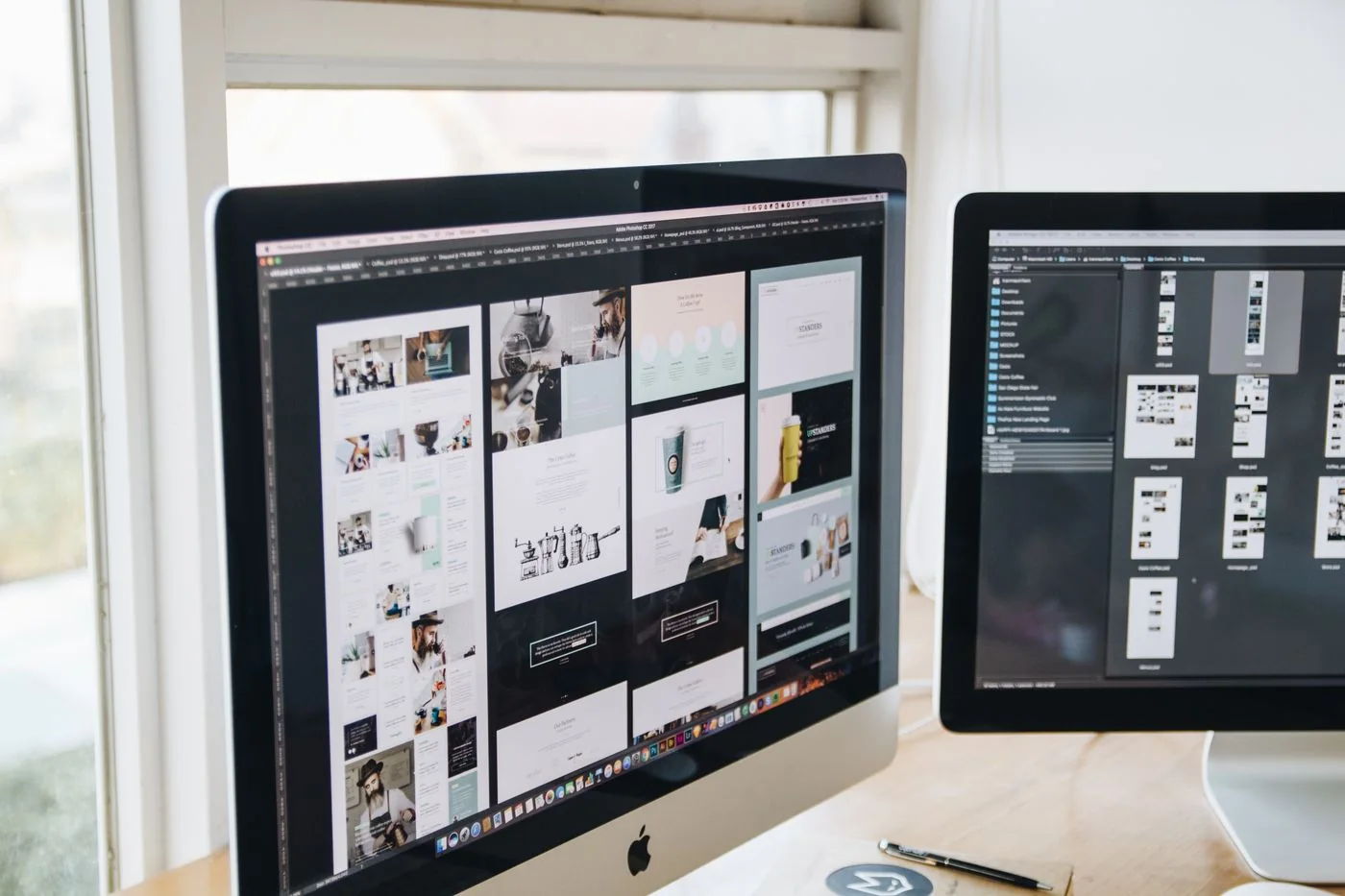
Open the system's display settings and identify the monitor you want to change. In a multi-monitor arrangement, select that screen before changing its scale. Start with a recommended or standard option and open an application you use daily. Judge ordinary text, buttons and menus rather than only a large desktop icon.
Keep the monitor at an appropriate supported resolution while testing scale. If the result requires an application restart or sign-out, save work and follow the system's prompt. Do not apply several custom values rapidly; give yourself time to compare readability and the amount of usable workspace.
Separate system scale from application zoom
Browser zoom changes the content of a page and may be remembered for that site. Document zoom changes the view of a file, not necessarily the application's menus. System scaling affects a broader part of the interface. Choose the level that matches the problem: one unusually small website does not require changing the whole desktop.
With different monitors, test moving a window between them. Text may appear a different physical size because the screens have different pixel densities. Adjust each screen deliberately rather than insisting on the same percentage everywhere. Some older applications handle scaling poorly; consult the application's support guidance if one remains blurred while others look correct.
Keep the result usable in real work
Check a dialogue with several buttons, your email view and a typical document. Make sure controls fit and important content is not hidden. Arrange the display rectangles to match the physical screens so pointer movement remains predictable.
If you find yourself leaning forward despite larger text, reconsider distance and placement as well as settings. Scaling is one part of the workstation. Keep a note of the previous value so you can return to it, and reassess after changing the monitor or moving to a different desk.