Prepare the device and workspace
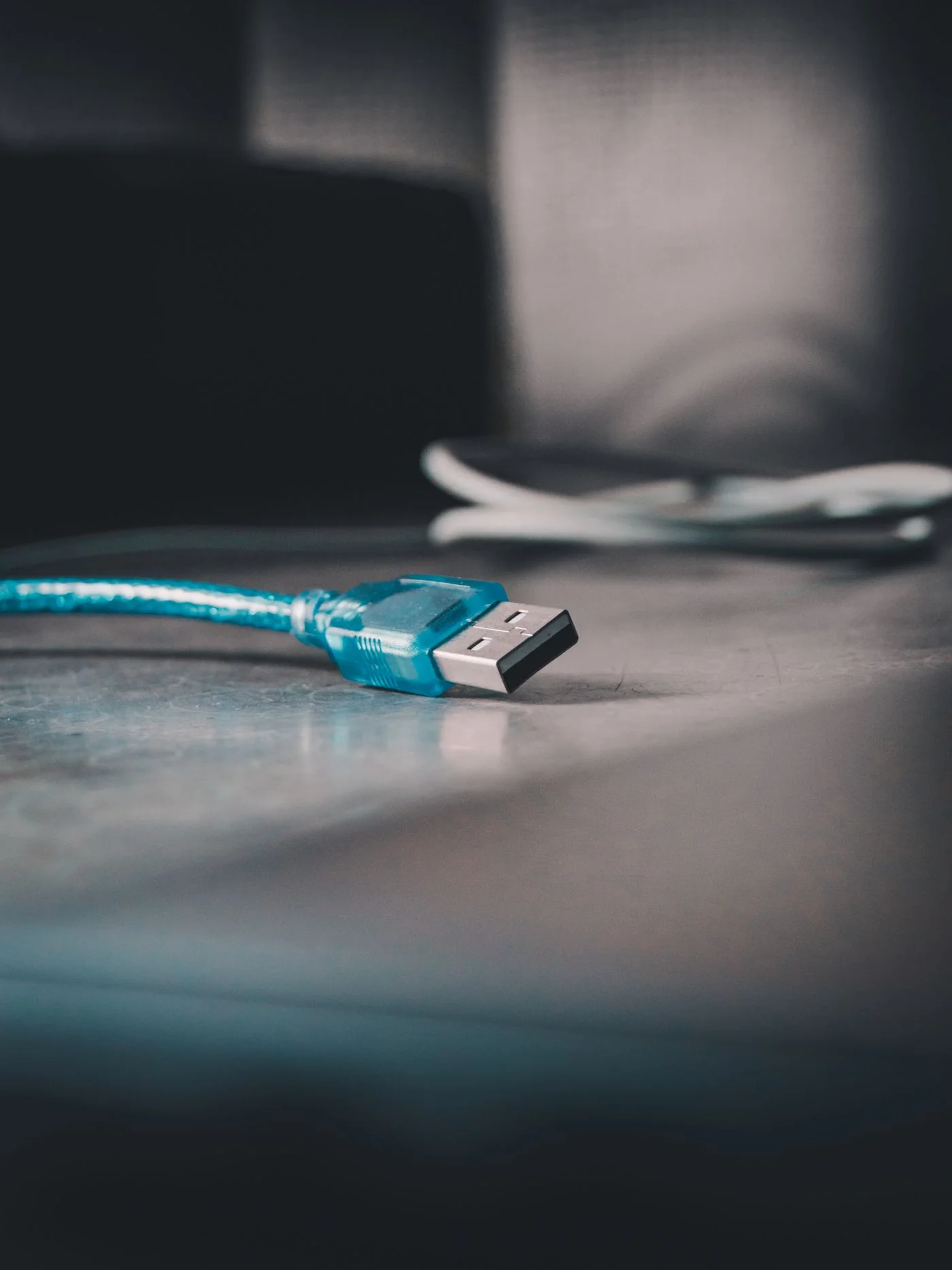
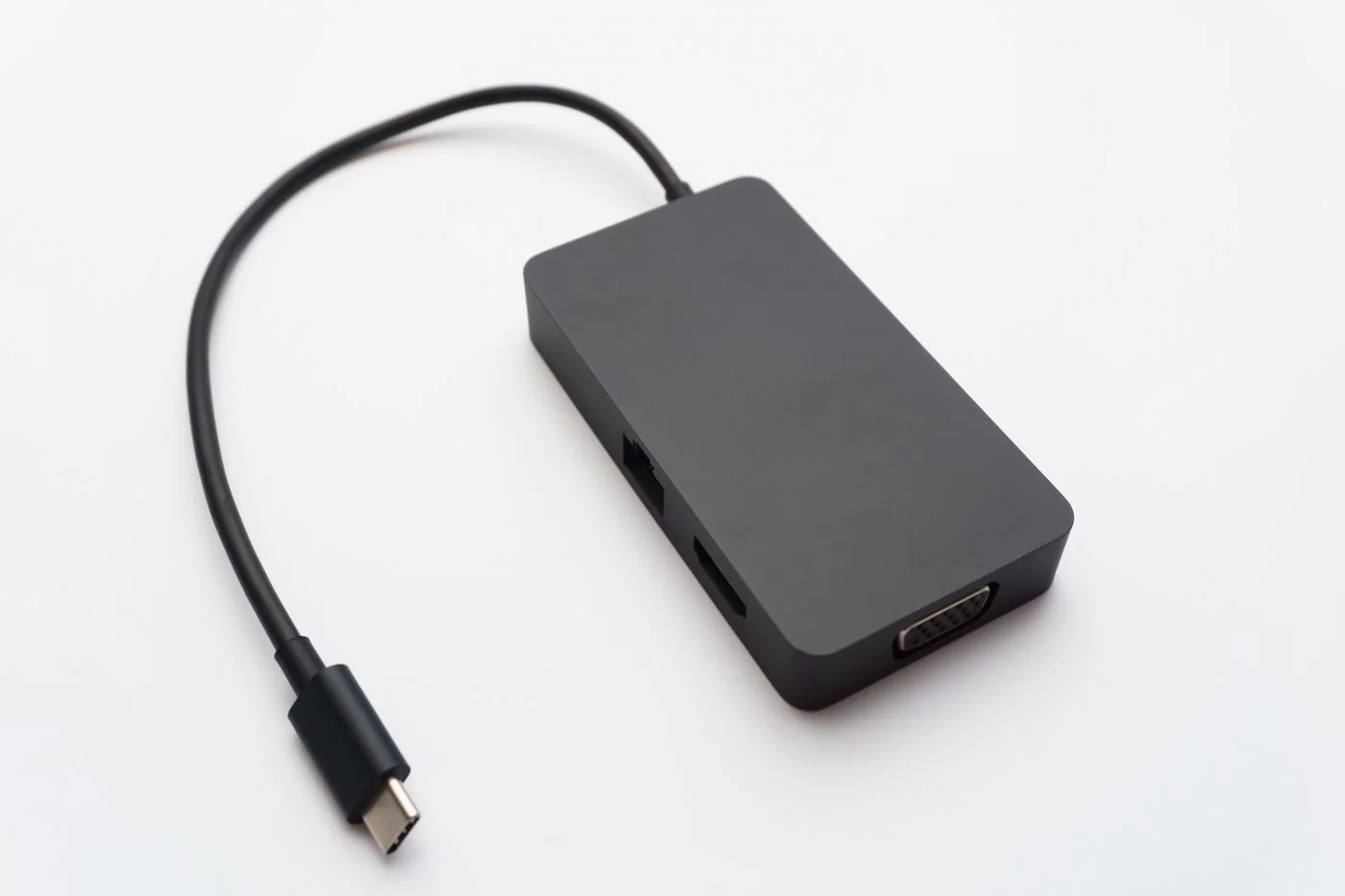
Save work, shut down or disconnect the equipment as appropriate, and remove external power. Switch off wireless accessories. Follow the manufacturer's instructions about removable batteries. Keep liquids away from nearby powered equipment and prepare a soft, lint-free cloth.
Remove loose surface debris gently using the permitted method. Do not pry off keycaps unless the model's instructions explicitly allow it. Laptop key mechanisms can be damaged by a technique intended for a different keyboard. Similarly, avoid forcing tools into the mouse's sensor opening or wheel mechanism.
Use only the permitted amount and product
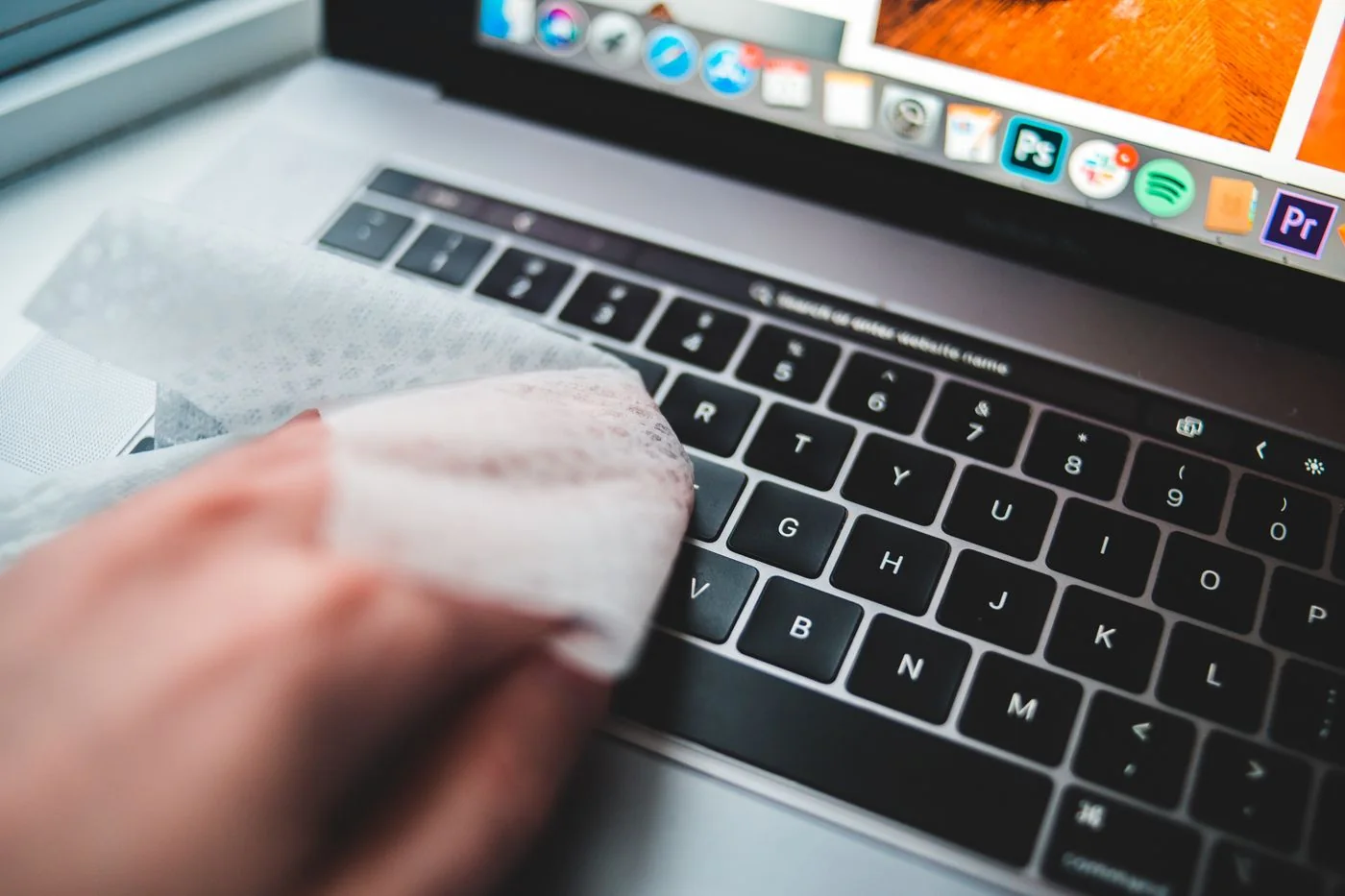
If a damp cloth is allowed, apply the permitted product to the cloth rather than spraying the device. The cloth should not drip. Keep moisture out of openings and avoid soaking seams. Follow the specified contact and drying instructions where disinfecting is part of the approved procedure.
Apple's care guidance, for example, distinguishes product surfaces and permitted products; it should not be treated as universal permission for every brand or material. Do not mix cleaning chemicals or assume a stronger concentration is better. Abrasive pads and aggressive solvents can damage surfaces even when they remove visible dirt.
Check before reconnecting
Allow the equipment to dry fully according to its instructions. Reconnect and test ordinary typing, clicks and scrolling. If a key sticks or a button behaves differently, do not flood it with more cleaner. Consult the maker's support guidance for that symptom.
A substantial spill is a separate incident. Disconnect power when safe and follow the device's spill or service instructions rather than continuing to type while wiping the surface. Keep a short record of the liquid and what happened for support. Routine exterior cleaning cannot establish that moisture inside the device has been removed.