Begin at the device
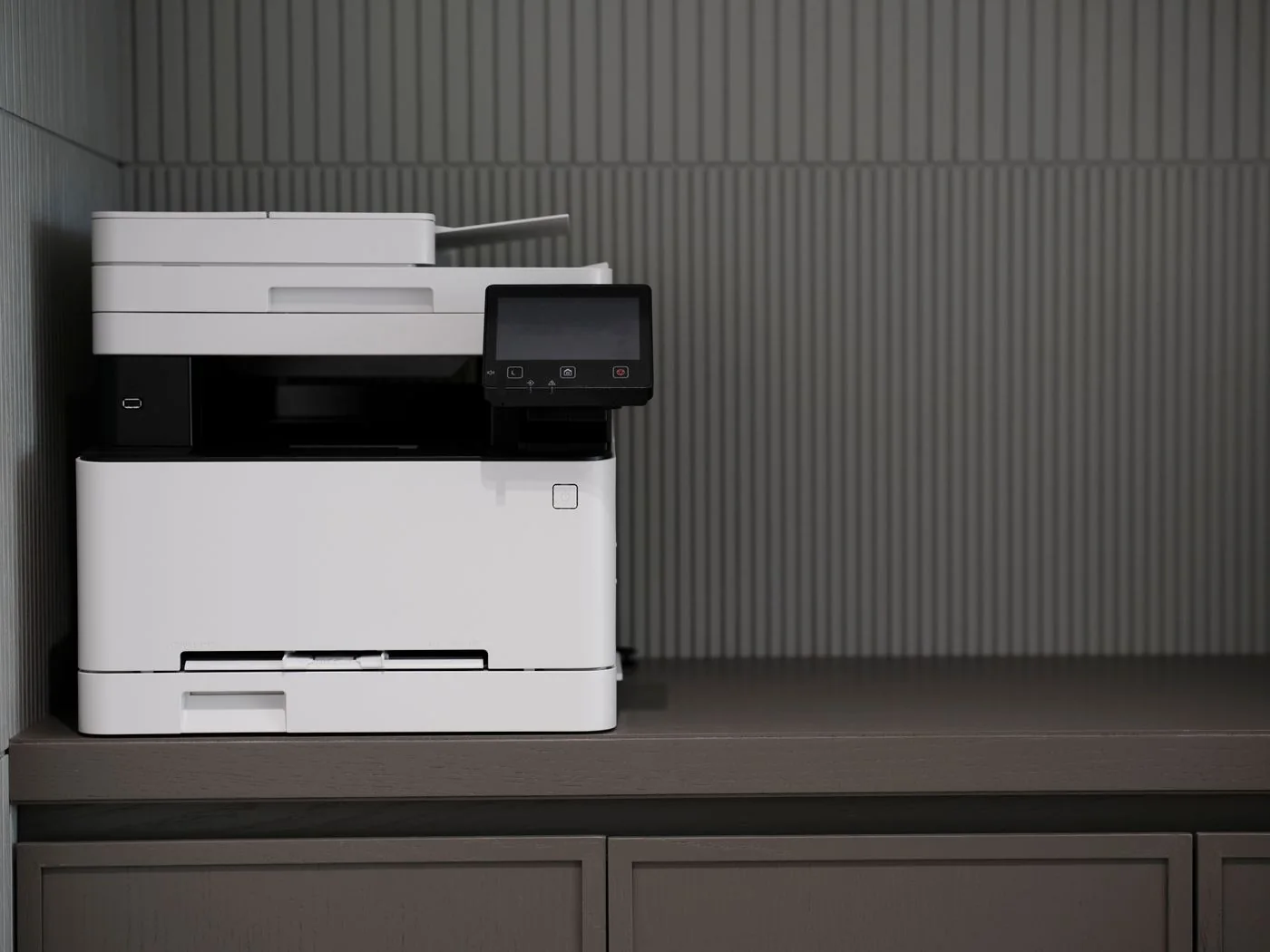
Check the display, power, paper and any visible error message. A sleeping printer may first need to wake. Resolve a paper or cover warning using the manual before changing network settings. Installing another driver does not automatically make a printer with a local fault ready to operate.
If the model can print its own status or test page, try that with unimportant content. A successful result shows that at least part of the printing mechanism is available. It does not prove communication with the computer, but helps separate a local device problem from a transfer problem.
Trace the connection
For USB, inspect the data cable and actual computer port. Where possible, test the intended direct connection instead of replacing several adapters at once. Note whether the printer entry appears or disappears when the connection changes.
For Wi-Fi or Ethernet, check the connection status on the printer. After a router replacement, it may still hold an old configuration. A guest network or isolation feature can prevent local communication. Investigate that with the responsible contact rather than disabling the firewall broadly.
Inspect the selected printer entry
Open the printer selection in the application you are using. Look for suffixes, old copies and different connection types for the same model. A reachable printer is of no help if the job is still addressed to an outdated USB or network entry.
Inspect the intended printer's queue. A paused entry or an earlier job may also be involved. Do not cancel every job on shared equipment without coordination. Identify your own job and record the message associated with it before changing anything.
Treat reinstallation as a later controlled step
If the connection is sound but the entry remains faulty, the documented manufacturer or operating-system procedure for removing and adding the printer may be appropriate. Record its name and required configuration first. On managed equipment, have the responsible team handle the change.
Then send one small test job and follow it through to physical output. Repeatedly pressing Print can create a pile of delayed copies when the connection returns. The useful result is a job from the intended application arriving at the intended printer, not merely the disappearance of an offline label.