Measure a normal morning
Save your work and restart the computer once. Note roughly when the sign-in screen appears and when you can open a small local document. Keep the conditions consistent: use the same power supply, leave the same peripherals attached, and avoid comparing a restart with waking from sleep. Those are different operations.
Write down whether this happens every day or began after a particular installation. A one-off restart while an update finishes is different from a delay that repeats for a week. If an update is visibly progressing, allow it to complete; forcing the power off is not a way to improve its speed. On an employer-managed device, send these observations to the person responsible for it before changing system settings.
If the delay comes after signing in
Open the operating system's startup or login-item settings. Windows provides startup-app controls in Settings and Task Manager; macOS provides Login Items & Extensions in System Settings. The exact labels can vary with the system version. Review the applications that open automatically, rather than disabling every entry you see.
A music player, shopping utility or rarely used chat app can usually wait until you open it. Disable one clearly identified, unnecessary startup item, restart, and compare the same two timings. Disabling automatic launch does not uninstall the application. Record what you changed so that a useful item can be enabled again.
Leave security software, accessibility tools, backup tasks and unfamiliar system components alone until you understand their purpose. A synchronisation client may be busy because it is catching up with new files. Making it disappear from startup can hide that work rather than solve the reason for it. If the desktop settles after a few minutes, look at activity during that period instead of judging the computer only at the first click.
Separate local loading from network waiting
Open a document that is definitely stored on the computer. Then open a cloud file or shared folder. If only the second action is slow, investigate the connection or service first. The computer may already have started normally while the application is waiting for something elsewhere.
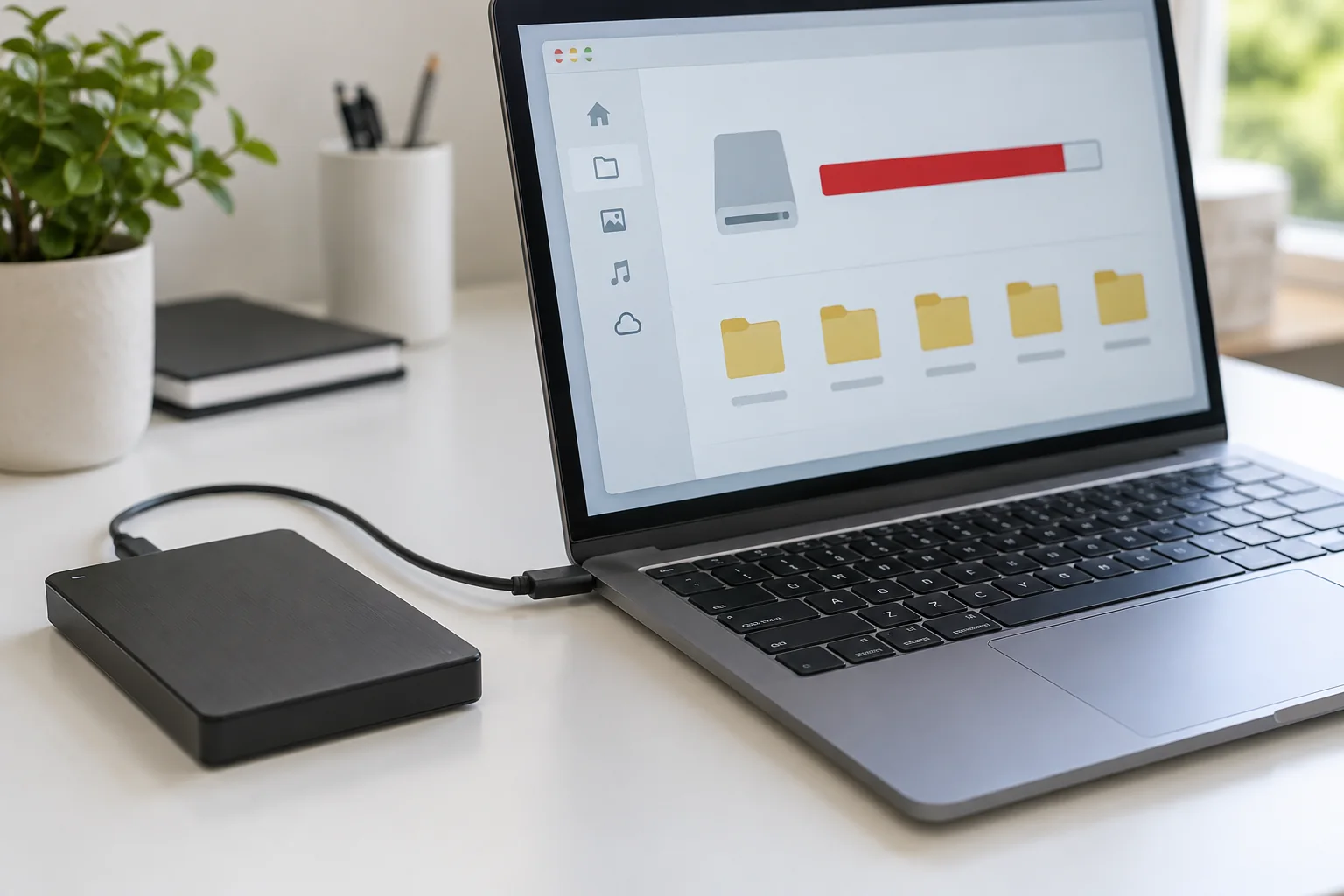
For a controlled peripheral check, shut down normally and disconnect non-essential external drives and USB accessories. Leave the keyboard, mouse and required display available. Start again, then reconnect accessories individually after the test. Do not unplug a drive while it is writing, and do not change firmware boot settings merely because an external drive was connected.
Look for a persistent bottleneck
After signing in, use Task Manager on Windows or Activity Monitor on macOS to observe CPU, memory and disk activity. A brief burst is expected; sustained heavy activity from the same application is a more useful clue. Note the application name and whether it remains busy once its initial work has finished. Check that the system drive is not almost full using the built-in storage view.
Avoid registry cleaners and downloads promising a one-click speed boost. They make changes that are difficult to connect to your original symptom. If the device has become slow suddenly and also freezes, reports disk errors or loses files, prioritise a current backup and hardware support over repeated performance experiments. An upgrade might eventually be appropriate, but the observations above help distinguish a startup-app problem from storage, network or hardware trouble before money is spent.