Check recognition outside the meeting
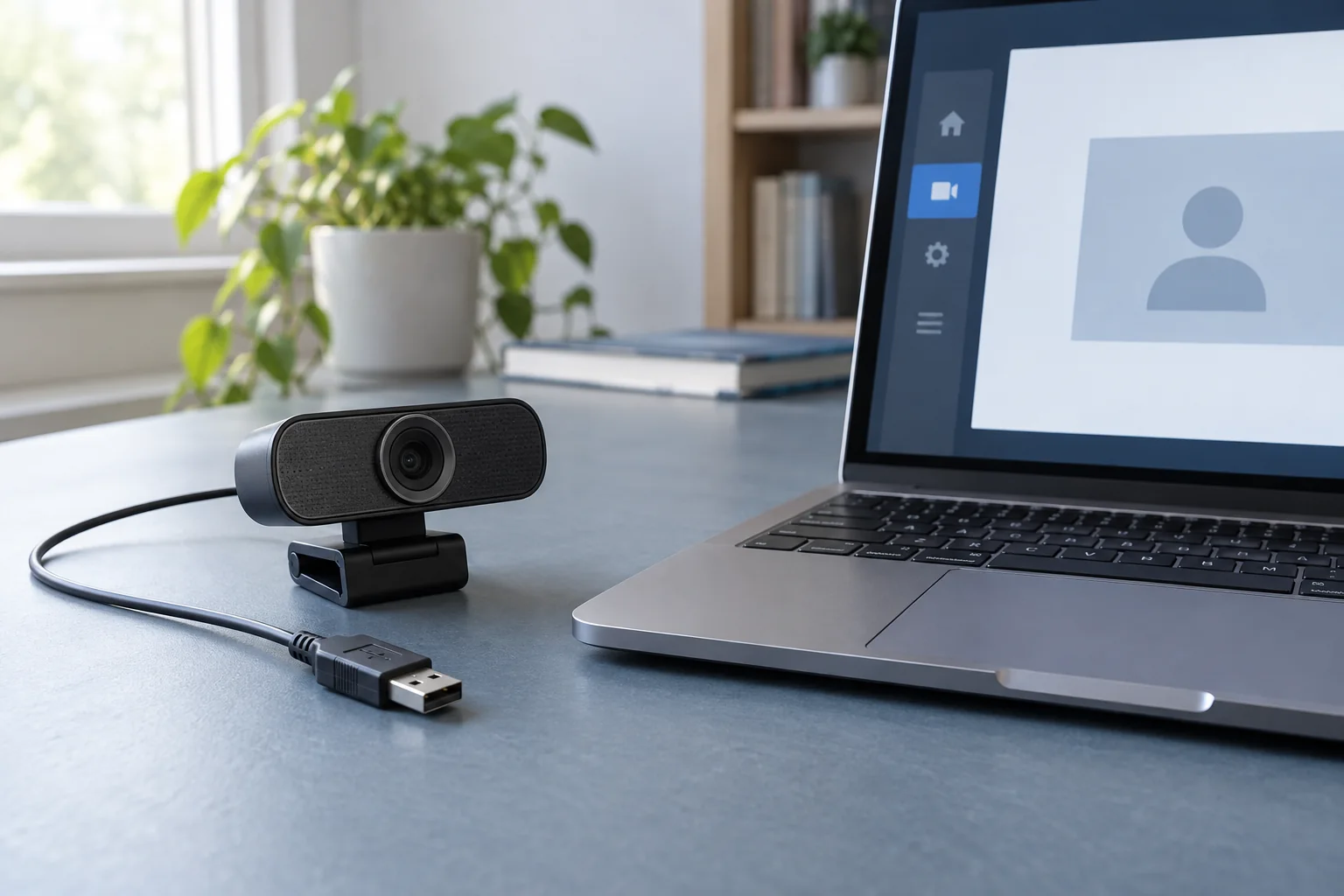
For an external camera, connect it to a suitable computer port without an unnecessary hub for the initial test. Inspect the cable and connector. Open the system's camera application or another supported local preview. If a picture appears there, the hardware is available to at least that application, and the meeting application's selection or permissions become the next focus.
Close other applications that may be using the camera. Then reopen the intended meeting software and select the camera by name. A laptop may offer an internal camera, external camera and virtual-camera software. Choosing the wrong entry can produce a blank or unexpected image.
Review the relevant permission
Check the operating system's camera privacy settings and whether the intended application is allowed access. Browser meetings also require the site's browser permission. Grant access only to the application or site you intend to use, not indiscriminately to every request.
On a managed computer, a policy may control camera use. Ask the administrator rather than attempting to bypass that restriction. If the device is absent from system detection entirely, follow the manufacturer's model-specific connection and driver guidance. Download software only from the official source for that model.
Use the comparison to choose support
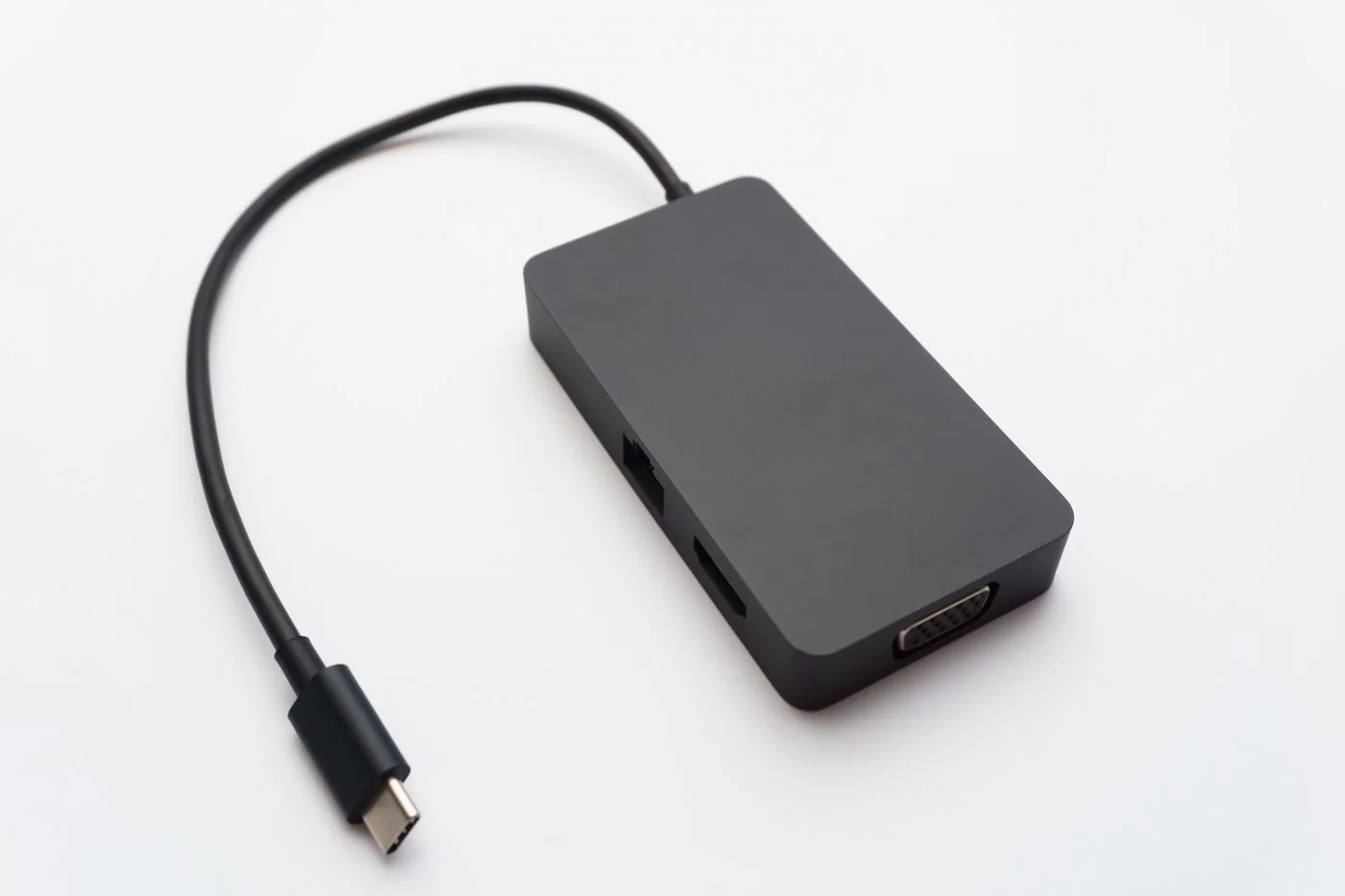
If the camera works directly but not through a hub, investigate that connection and its supported power or data arrangement. If it works in one application but not another, provide the failing application's version and permission state. If it works nowhere, include whether the system recognises the device at all.
Test the final setup before the next call, including reconnecting the camera if that is part of your routine. Do not leave a confidential meeting running as the troubleshooting environment. A local preview or approved test call gives you a way to check the image without exposing other participants or private material.