Check power and tracking
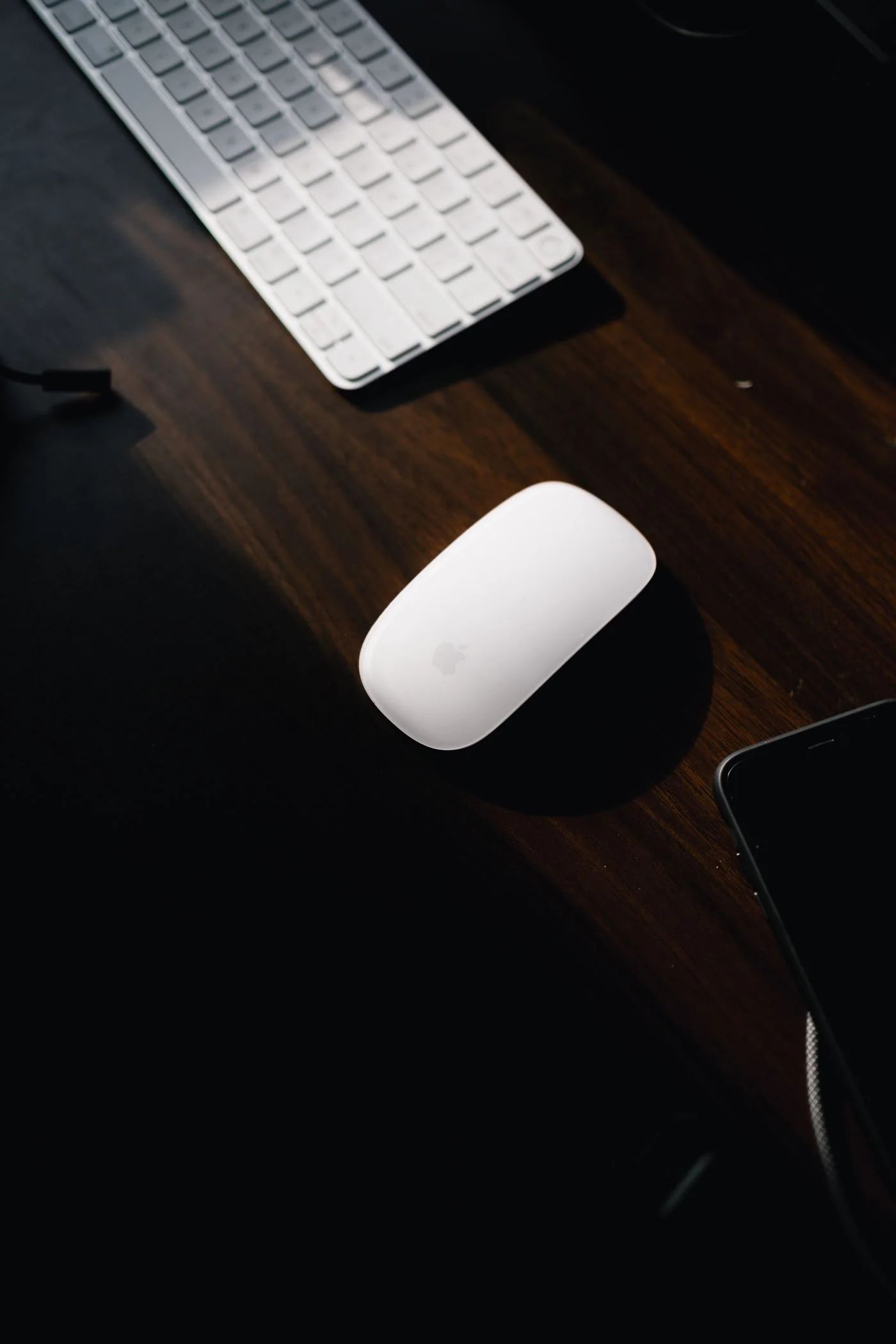
Charge the mouse or replace its battery with the specified type. Confirm the power switch and selected computer channel. Inspect the sensor area for visible debris and clean only as the manufacturer permits. Try a plain mouse mat rather than a reflective, transparent or unusual surface to see whether tracking changes.
Compare the built-in trackpad or another mouse if available. If every pointing device becomes slow at the same time, the computer may be busy rather than the wireless link failing. Observe the system's activity before assuming the mouse itself needs replacement.
Identify the wireless route
Determine whether the mouse uses Bluetooth or a dedicated receiver. Receivers are not universally interchangeable, even within a brand. Use the correct compatible receiver and pairing procedure. Moving a random receiver from another mouse into the computer is not a reliable compatibility test.
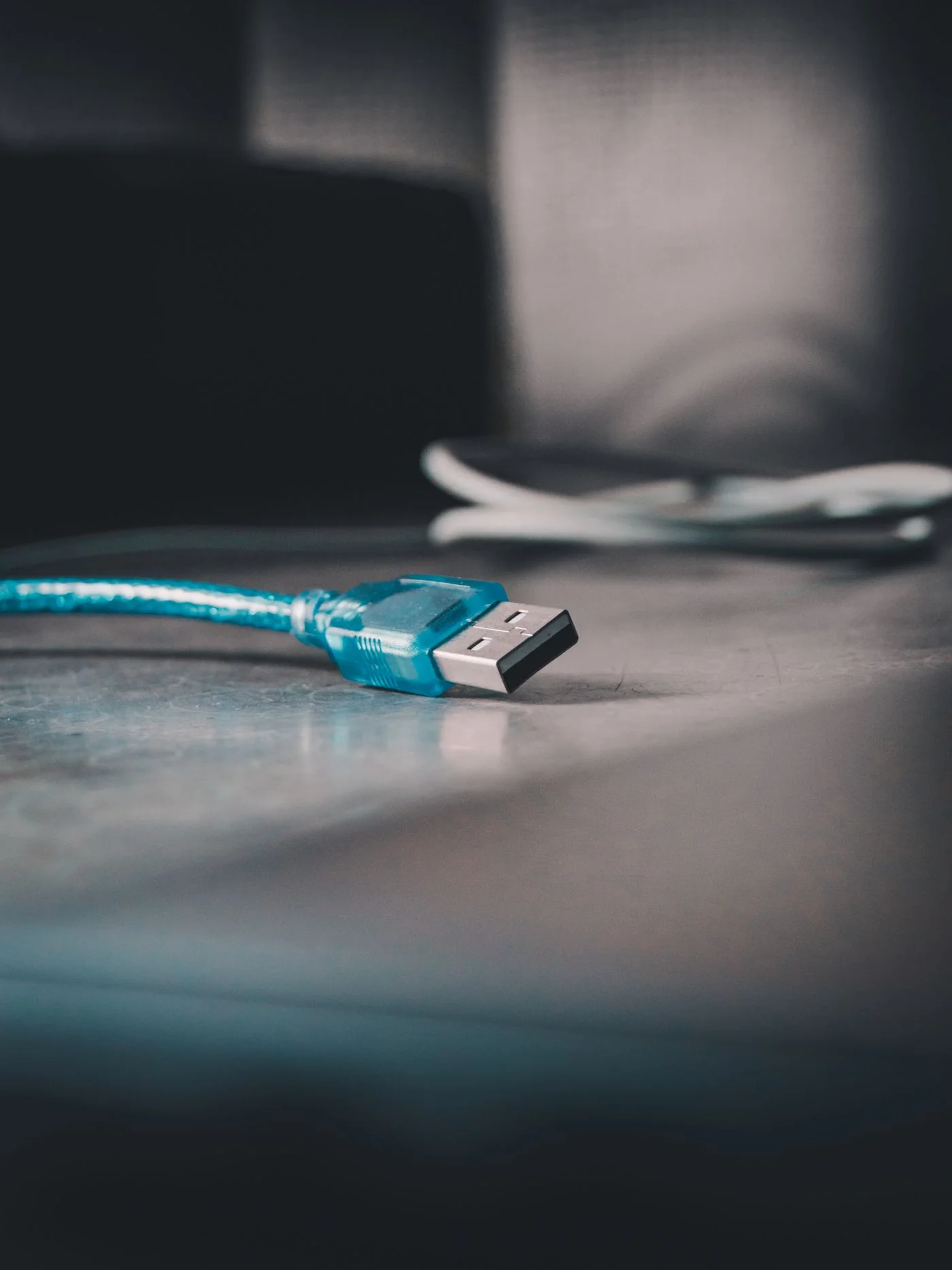
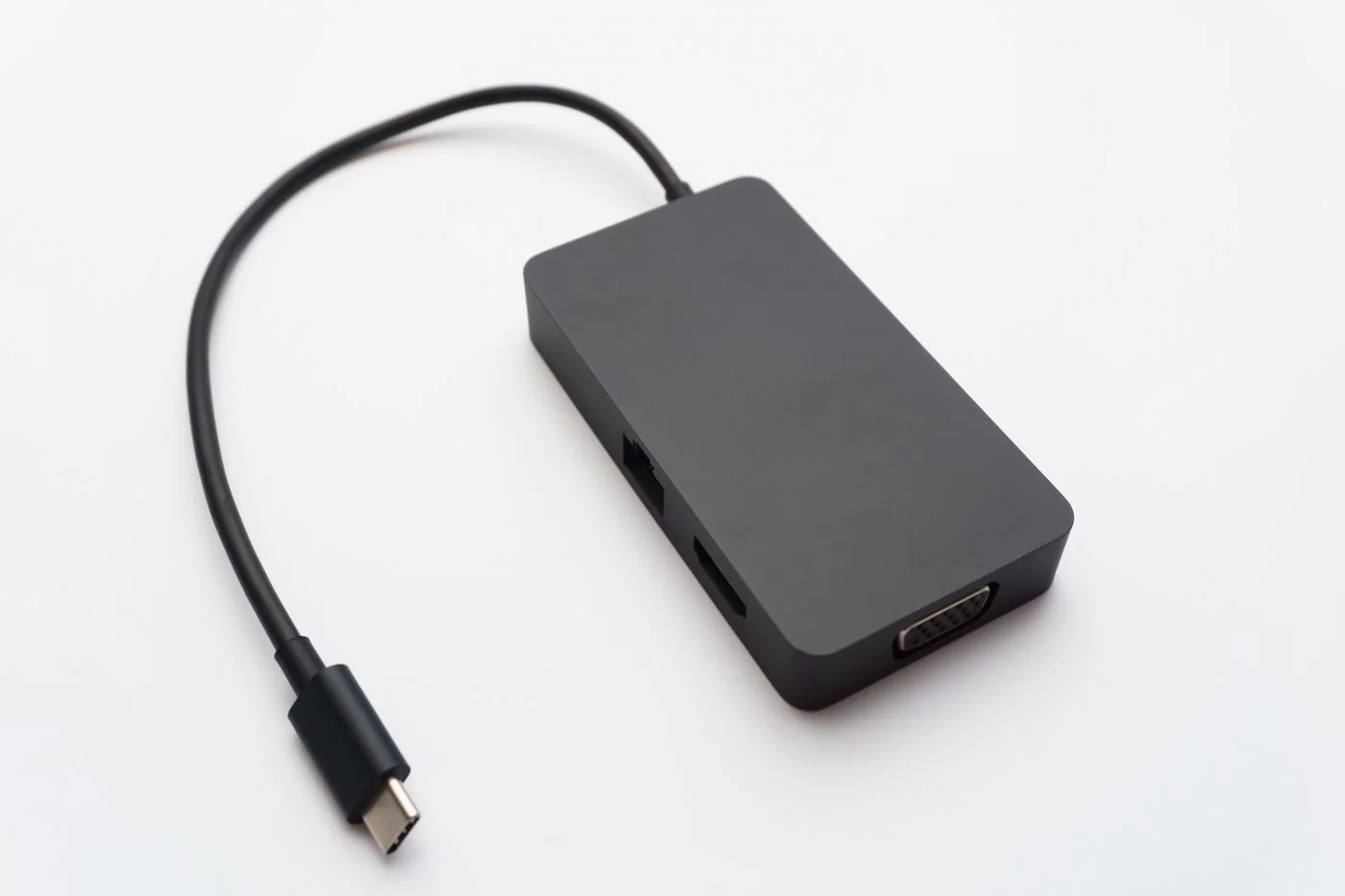
For a receiver-based connection, try a supported position closer to the mouse and away from obstacles. Logitech documents interference affecting some 2.4 GHz peripherals near USB 3.0 equipment. If the problem began after adding an external drive or moving a hub, compare with that equipment safely disconnected, or reposition the receiver using a suitable extension when recommended.
Test normal desk use
Reconnect required devices one at a time and repeat the movement that caused the problem. Keep the surface and battery condition unchanged so the comparison remains meaningful. If repositioning the receiver fixes the issue, secure the new route without leaving a cable stretched across the desk edge.
For persistent faults, note whether the issue follows the mouse to another supported computer or remains with the original workstation. Share model, connection type and comparison results with support. Avoid changing sensitivity settings to conceal intermittent disconnections; sensitivity affects pointer movement, not the reliability of the underlying connection.