Make the comparison meaningful
Choose an ordinary task you can repeat without risking unsaved work. Use the same screen brightness, network connection and attached accessories. Note whether the computer was recently updated or is downloading a large collection of cloud files. Those temporary tasks can consume energy even when the foreground application seems quiet.
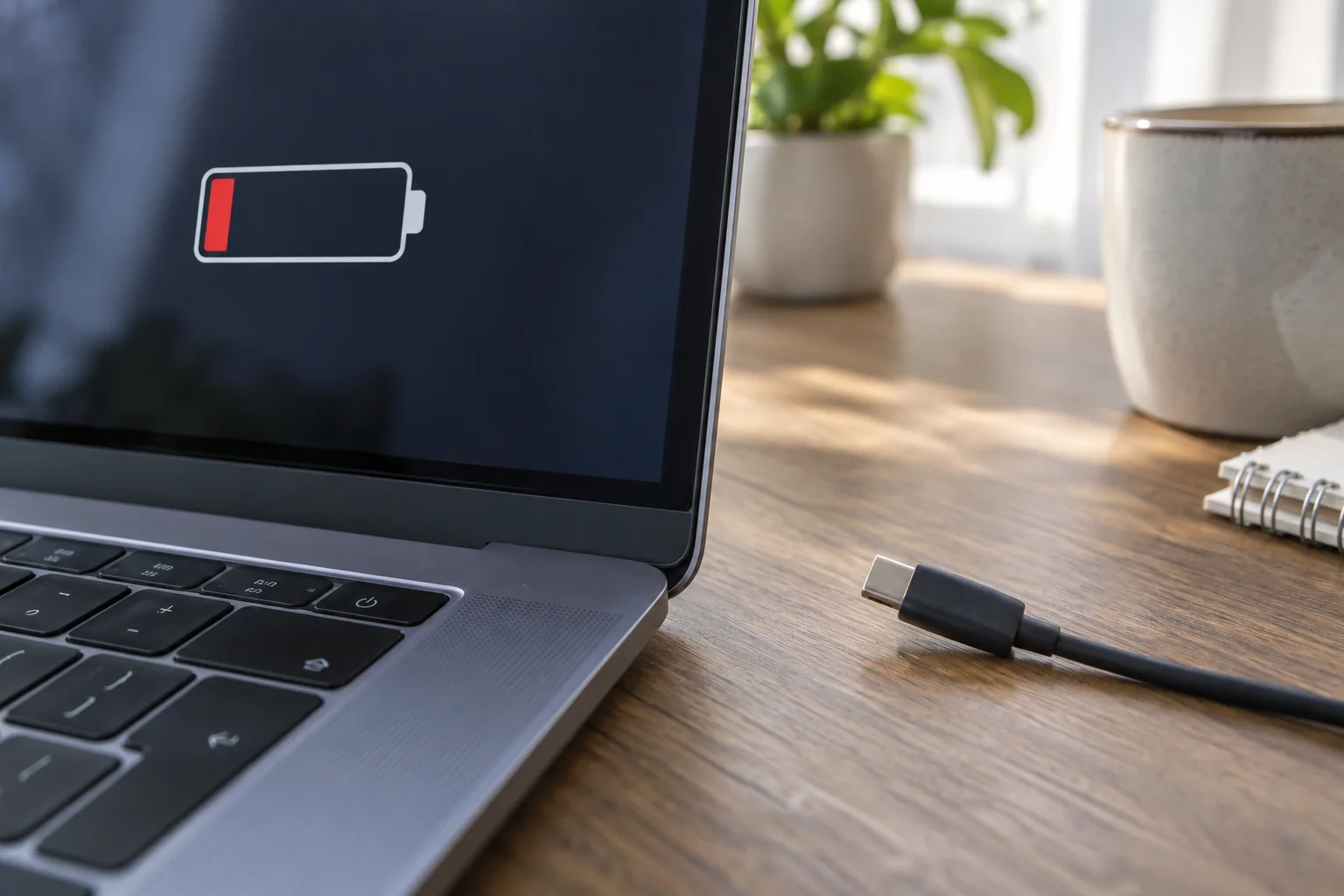
Do not deliberately run the battery to zero as a diagnostic ritual. Observe a useful interval instead, such as part of a normal working session, and save work before the charge becomes low. A percentage estimate is not a precision measurement; compare the overall pattern across a few similar sessions rather than reacting to one jump in the display.
Find active consumers
Review the system's battery-use view, where available, alongside its process activity monitor. A browser with many active tabs, video effects, media processing or synchronisation may explain the change. Close work you no longer need and check whether the consumption settles. If one application consistently uses energy while apparently idle, update it through the official channel and review its settings.
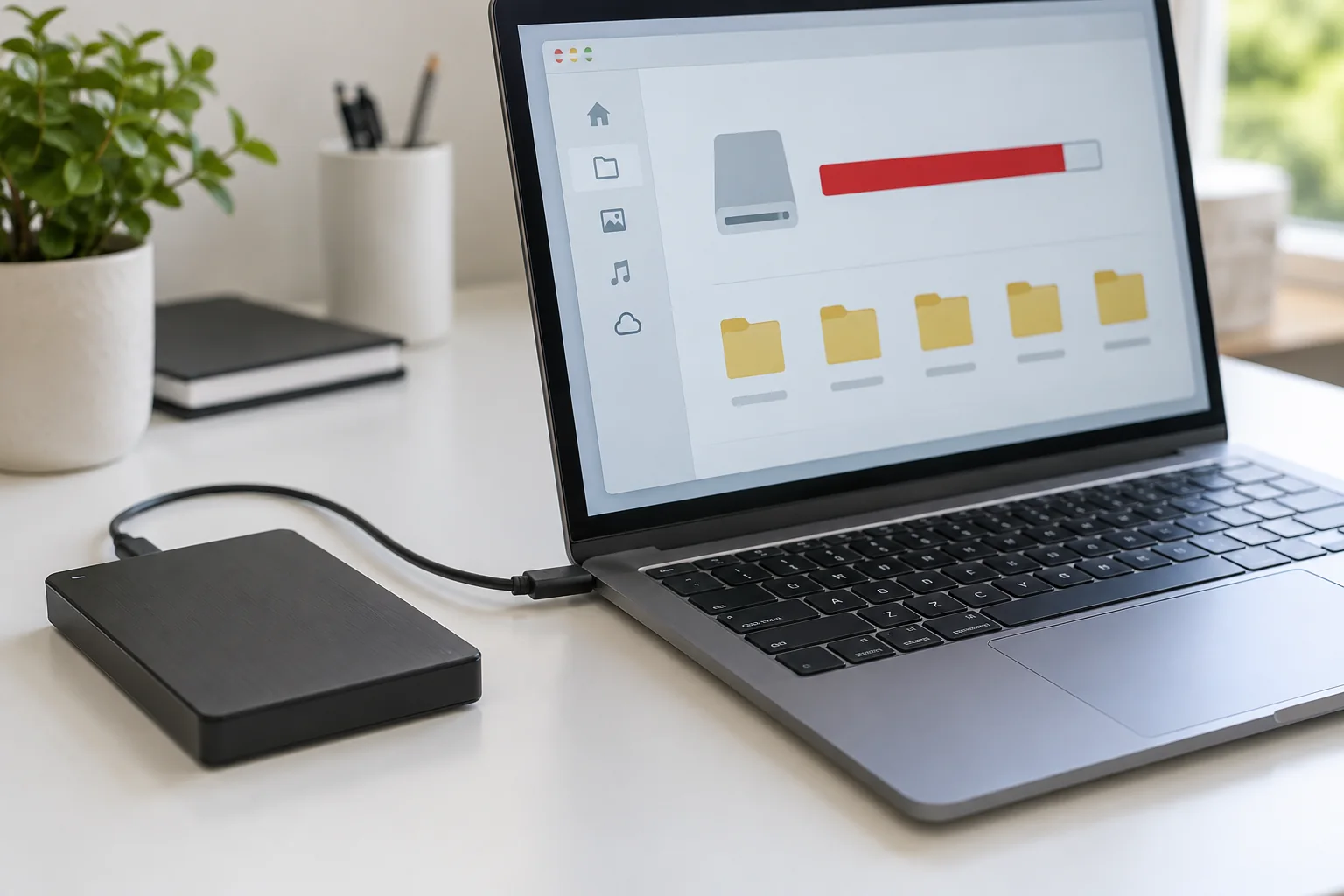
Screen brightness is a controllable part of the workload. Reduce it to a comfortable level for the room rather than the lowest possible setting. Disconnect accessories that are not needed, remembering to eject storage safely. A connected phone or portable drive can draw power from the laptop.
Use the manufacturer's or operating system's supported energy-saving mode when its trade-off fits the task. Expect that some modes limit background activity or performance. Confirm that necessary synchronisation and calls still behave as you need, especially before relying on the mode during travel.
Check condition separately from charge
Battery-health information, if provided for the model, helps distinguish a full charge from remaining capacity. A battery can report fully charged while holding less energy than when it was new. Read the manufacturer's explanation of health status and service recommendations; different systems present these values differently.
Charging limits or optimised charging can intentionally stop short of a displayed full charge under some conditions. Review the feature before treating a consistent limit as a fault. Conversely, sudden shutdowns at substantial reported charge, repeated charging failures or a service warning deserve investigation even if the percentage eventually reaches full.
Plan the next step around the evidence
If runtime is short only during a demanding task, adjust the workflow or arrange suitable external power. If the same modest workload has become much worse and the health information indicates reduced capacity, ask the manufacturer about battery service for the exact model. Compare the service option with the condition and intended remaining use of the whole computer.
Stop using a battery that is swollen or has distorted the case, and follow appropriate service guidance. Do not try to compensate by changing software settings. For a routine support request, provide your repeatable workload, observed duration, power settings and health status. This allows a more useful discussion than a claim that the battery simply feels worse.