Check the site in the relevant profile
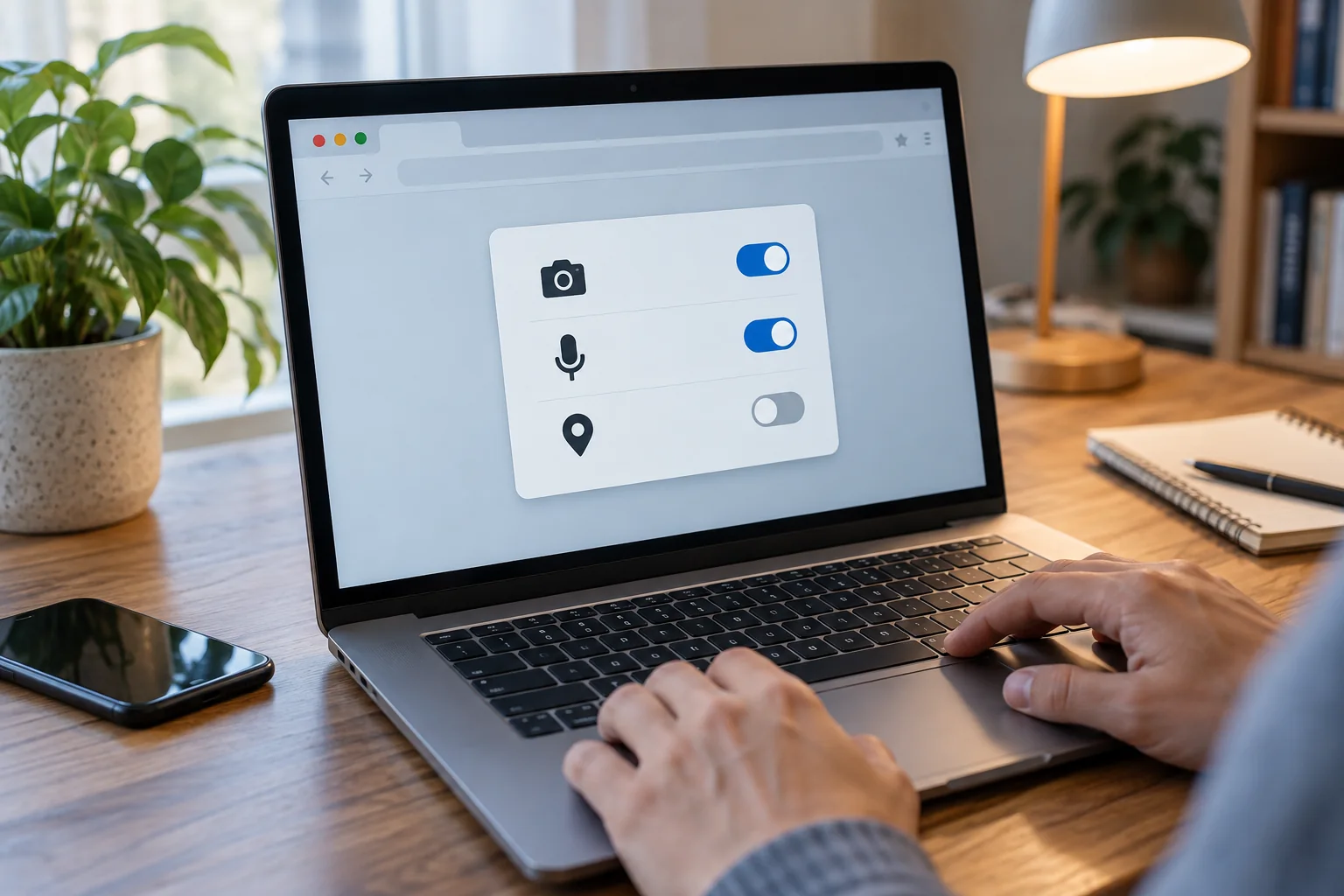
Open the browser's established site-permission settings. Look for the actual address of the calling service rather than a similarly named entry. Personal and work browser profiles can have different permissions, so inspect the profile in which the conversation takes place.
Grant access when you intend to use the function and recognise the website. Where a one-time option is available, it may suit a single appointment. Remove old persistent permissions you no longer need. A change may become apparent only after reloading the page or trying the connection again.
Separate permission from device selection
A permitted microphone can still be the wrong microphone. Check whether the call service has selected the built-in device, a headset or a USB microphone. Speak a short test sentence and watch the available level indicator. For a camera, compare the preview with the view you intended to send.
If access remains blocked, inspect the operating system's permission for the browser. A physical camera cover or mute button can also affect the result. Change one layer at a time so you can tell which setting makes a difference. On managed devices, some choices may be controlled by the administrator rather than the person attending the call.
Review access after the appointment
End the call and close tabs you no longer need. For a service used only occasionally, consider whether its persistent permission should remain. Removing permission is particularly useful when you opened a service only for one appointment and do not expect to use it again soon.
Test revised settings before the next important conversation, using an unimportant image and avoiding confidential background sound. This lets you confirm that the intended restriction works without hurriedly changing several controls during a client meeting. If the problem remains, record the browser, profile and affected website so the next troubleshooting step starts with a clear description.