Give cooling a chance
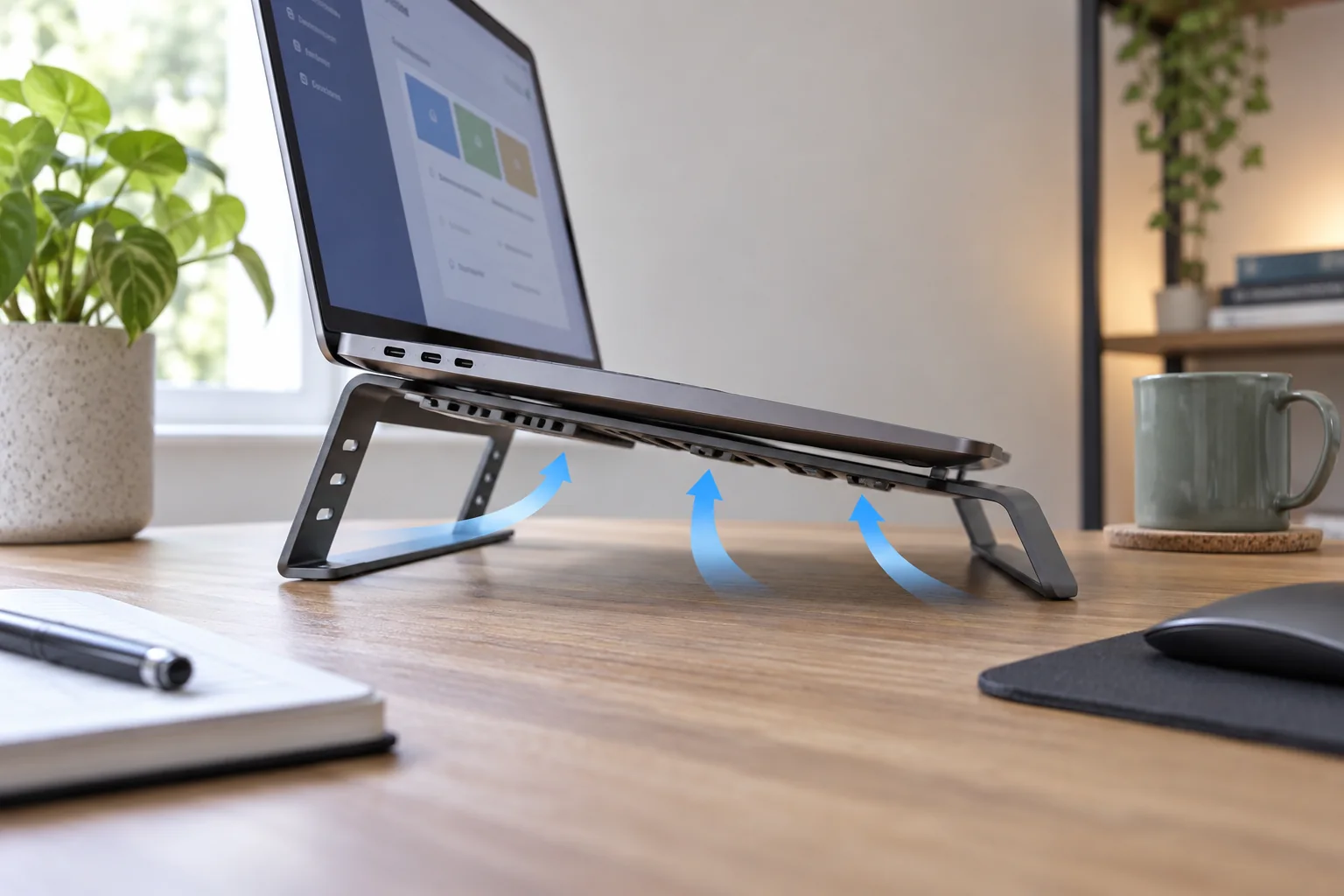
Place the laptop on a stable, hard surface. Fabric, bedding and a soft lap cushion can obstruct ventilation. Leave the vents clear and check that a stand or dock does not cover them. Keep the device out of direct sun and follow its manufacturer's permitted environmental conditions rather than assuming a comfortable room is suitable in every location.
If the laptop was inside a bag while active, take it out and let it cool in a ventilated place. Do not use a refrigerator, ice pack or moisture to cool electronics. Check that the device actually sleeps or shuts down before packing it away again.
Look at what is running
Save work and inspect CPU activity using the system's built-in activity tool. A background update, browser tab or video task may explain a busy cooling system. Close a clearly identified unnecessary application normally and observe whether activity settles. Avoid terminating unfamiliar system processes at random.
If the same application repeatedly remains busy with no visible work, update it through its official mechanism and review its support information. Reproduce the issue with a small, non-critical task. Note whether the heat occurs only while charging, with a particular dock, or under any workload.
Know when to stop the test
A swollen battery, distorted case, burning smell, smoke or damaged charging connection is not a routine performance issue. Stop using the device, disconnect power when safe, and arrange appropriate manufacturer support. Do not press a swollen case closed or attempt to puncture the battery.
For recurring unexplained heat without those warning signs, provide support with the model, application, power setup and circumstances. Opening the case or overriding fan controls is not a necessary first step. Cleaning procedures differ by model, and internal work should follow the manufacturer's service instructions. A simple record of the conditions is more useful than a temperature number collected without context.