Build around the main task
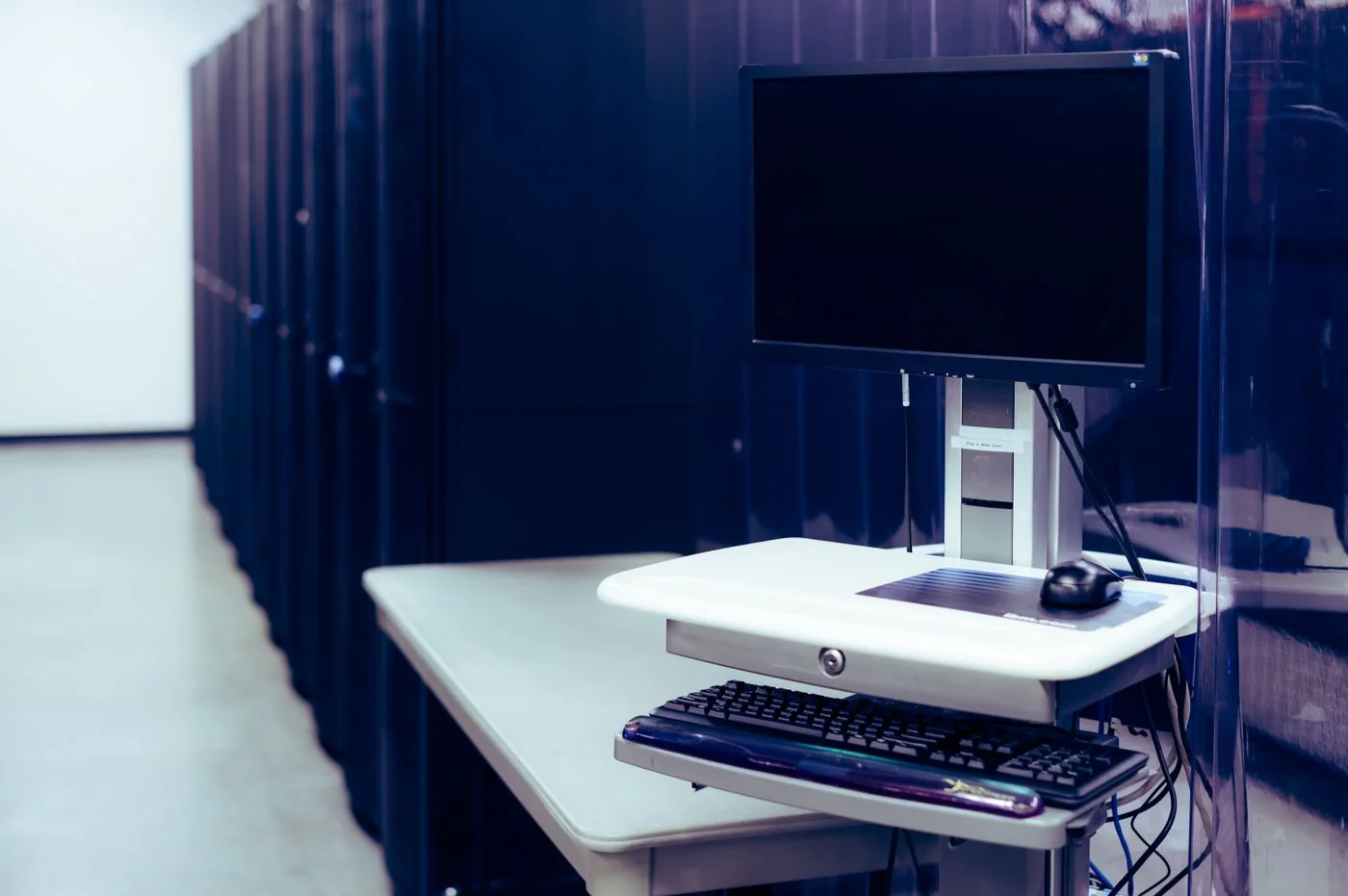
Put the screen used most often in front of you. With two monitors, avoid placing the gap directly ahead if nearly all work happens on one of them. A secondary screen used only for occasional reference can sit to the side; a screen used continuously deserves a position that does not require sustained rotation.
Adjust the stand so you can look at the working area comfortably without tilting the head back. Do not use the top edge as an inflexible target for every person. DGUV guidance on home-office setup gives a viewing distance of roughly 50–70 centimetres as an orientation, but the display, text size and individual needs still matter. Increase text scaling rather than pulling a large screen excessively close just to read small menus.
Place the screen to reduce reflections. Daylight from the side is generally easier to manage than a bright window directly behind or in front of the display. Check the actual reflection at the time of day you work. A setup that looks clear in the evening can be difficult in morning sunlight.
Check the supporting space
Leave room for keyboard and mouse in a relaxed working position. A monitor stand should be stable and suitable for the display's weight. If using an arm, confirm mounting compatibility, load rating and the desk's ability to support the clamp or mount. Do not improvise a support from unstable stacked objects.
Allow cables enough slack for adjustments and any desk-height movement. Keep ventilation and controls accessible. Test the position with a normal document and a short call, then make small changes rather than moving everything at once.
For an employer-provided workstation, use the available workplace assessment and adjustment support. Persistent discomfort or vision difficulties should not be addressed solely by following a generic monitor-height rule. The aim of this setup check is to identify avoidable awkward positioning and provide enough adjustment for the actual user.